Monday, 20 April 2015

How to remove contents from MDS repository


Oracle SOA 11G MDS used as a shared repository for managing and reusing shared resources like WSDL, XSD, DVM, XREF, FAULT-POLICIES and CONSTANTS across applications.
Here below are the WLST commands to import , export and delete contents from MDS

1. Execute wlst.cmd :


cd ${ORACLE_HOME}/oracle_common/common/bin

Execute wlst.sh file:
----------------------
wlst.cmd


2. Connect to WL Server :


connect('weblogic','welcome1','t3://localhost:7001')(if you have only adminserver)

connect('weblogic','welcome1','t3://localhost:8001') (if you have managed server)


3. Import Contents to MDS :


Import all files and folder :
-----------------------------
importMetadata(application='soa-infra',server='soa_server1',
               fromLocation='C:/Oracle/Middleware1/jdeveloper/integration/seed',docs='/apps/**')

Import files under specified directory to MDS:
----------------------------------------------
importMetadata(application='soa-infra',server='soa_server1',
           fromLocation='C:/Oracle/Middleware1/jdeveloper/integration/seed',docs='/apps/DVM/**')
importMetadata(application='soa-infra',server='soa_server1',
           fromLocation='C:/Oracle/Middleware1/jdeveloper/integration/seed',docs='/apps/XREF/**')

Import specific file to MDS:
---------------------------------
importMetadata(application='soa-infra',server='soa_server1',
               fromLocation='C:/Oracle/Middleware1/jdeveloper/integration/seed',
               docs='/apps/util/DVM/samplecountry.dvm')


4. Export Contents from MDS :


Export all files and folders from MDS:
--------------------------------------
exportMetadata(application='soa-infra', server='soa_server1',
               toLocation='C:/Oracle/Middleware1/jdeveloper/integration/seed', docs='/**')

Export all files and folders inside "/apps" folder :
----------------------------------------------------
exportMetadata(application='soa-infra', server='soa_server1',
              toLocation='C:/Oracle/Middleware1/jdeveloper/integration/seed', docs='/apps/**')

Export specific folder :
-----------------------
exportMetadata(application='soa-infra', server='soa_server1',
               toLocation='C:/Oracle/Middleware1/jdeveloper/integration/seed', 
               docs='/apps/util/fault-policies/**')
exportMetadata(application='soa-infra', server='soa_server1',
           toLocation='C:/Oracle/Middleware1/jdeveloper/integration/seed', docs='/apps/util/DVM/**')
exportMetadata(application='soa-infra', server='soa_server1',
           toLocation='C:/Oracle/Middleware1/jdeveloper/integration/seed', docs='/apps/util/XREF/**')

Export specific file:
---------------------
exportMetadata(application='soa-infra', server='soa_server1',
               toLocation='C:/Oracle/Middleware1/jdeveloper/integration/seed',
               docs='/apps/util/DVM/samplecountry.dvm')


5. Delete Contents from MDS :


Delete all files:
-----------------------------
deleteMetadata(application='soa-infra',server='soa_server1',docs='/apps/')

Delete files under specific folder:
-----------------------------------
deleteMetadata(application='soa-infra',server='soa_server1',
               docs='/apps/util/DVM')

Delete specific file:
---------------------
deleteMetadata(application='soa-infra',server='soa_server1',
               docs='/apps/util/DVM/samplecountry.dvm')


5. Delete Folder from MDS :


1. Go to ${ORACLE_HOME}/Oracle_SOA1/common/bin
2. Execute wlst.sh file.
3. wls:/offline>connect('weblogic','welcome1','t3://localhost:7011')
4. wls:/SOA-domain/serverConfig> sca_removeSharedData('http://localhost:8011',
                                    'DVM')
Example: sca_removeSharedData('http://<ManagerServerHost>:<ManagedServerPort>',
                              'DVM')

Just mention the any folder name inside root folder "/apps", that folder 
and files inside that folder will be deleted.


You can use asterisk(*) to specify more than one files e.g. to delete all files with names starting with Gen use 
deleteMetadata(application='soa-infra',server='soa_server1',docs='/apps/AIAMetaData/AIAComponents/ApplicationConnectorServiceLibrary/Gen*.wsdl')
Exception:
You may get the following exception
MDS-91002: MDS Application runtime MBean for "soa-infra" is not available. "deleteMetadata" operation failure.


Solution:
- Verify that your soa-infra is up and running and is on the correct server (Admin, soa_server1) as specified in the deleteMetadata() command 
- Verify that you've not fired the command to connect to other managed server during the steps to delete the file. If you connected firstly to SOA server, then to Admin Server and now you try to fire deleteMetadata(), it will give above error. Hence start again.


                                                                                                                                   By  
                                                                                                                    Deepthi reddy

Tuesday, 7 April 2015

DB based MDS and adf-config.xml

 DB based MDS and adf-config.xml


Version 11.1.1.6

JDeveloper can be used to connect to DB based MDS. The steps to create DB based MDS are -


  1. Create DB connection to DEV_MDS.
  2. Create MDS connection (DB based) while selecting the db connection created in first step.
  3. Add that MDS connection to the repository and you are ready to refer the artifacts from DB based MDS.


Sometimes if adf-config.xml is not correct you may face below error while opening the application.

Error: oracle.fabric.common.FabricException: oracle.mds.config.MDSConfigurationException: MDS-01330: unable to load MDS configuration document 

MDS-01329: unable to load element "persistence-config"
MDS-01370: MetadataStore configuration for metadata-store-usage "mstore-usage_2" is invalid. 
MDS-00011: unable to create configuration object or MDSInstance due to invalid configuration information: oracle.mds.exception.MDSException: MDS-01373: unable to retrieve password. 
MDS-01373: unable to retrieve password.


Make sure that mstore-usage is defined correctly. Pasting the correct adf-config.xml here -

<metadata-namespaces>
          <namespace path="/deployed-composites/default"
                     metadata-store-usage="mstore-usage_2"/>
          <namespace path="/soa/shared" metadata-store-usage="mstore-usage_3"/>
        </metadata-namespaces>
        <metadata-store-usages>
          <metadata-store-usage id="mstore-usage_2">
            <metadata-store class-name="oracle.mds.persistence.stores.db.DBMetadataStore">
              <property name="jdbc-userid" value="DEV_MDS"/>
              <property name="jdbc-password" value="password"/>
              <property name="jdbc-url"
                        value="jdbc:oracle:thin:@<ipaddress>:<port>:<SID>"/>
              <property name="partition-name" value="soa-infra"/>
            </metadata-store>
          </metadata-store-usage>
.....


modified above:

 <metadata-store-usages>
          <metadata-store-usage id="mstore-usage_1">
        <metadata-store class-name="oracle.mds.persistence.stores.db.DBMetadataStore">
              <property name="jdbc-userid" value="DEV_MDS"/>
              <property name="jdbc-password" value="system"/>
              <property name="jdbc-url"
                        value="jdbc:oracle:thin:@localhost:1521:XE"/>
              <property name="partition-name" value="soa-infra"/>
            </metadata-store>
          </metadata-store-usage>
        </metadata-store-usages>


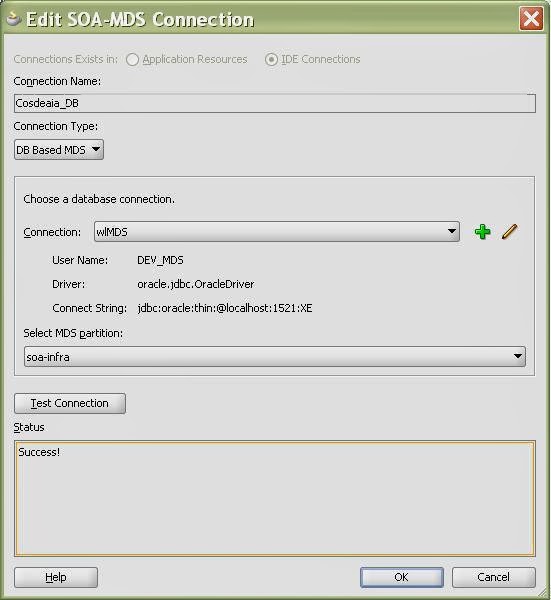
My DB based MDS connection looks like:


my Folder structure in MDS conncetion lokks like :


SOA 11g MDS - Share Common Artifacts

I am detailing the step-by-step instructions which allows for sharing of common artifacts (schema files/WSDLs) among SOA projects and more importantly helps in loose coupling of service bindings & remove service dependencies.

A typical use case is where the abstract WSDL definition of an external service can be stored in MDS and referenced from the SOA composite which will loosely couple the services and also guard against 'SOA Composite Invalidation' issues.

SOA 11g provides us with MDS repository (both file based & DB based) where common artifacts can be stored and referenced by all projects in the SOA infrastructure.

File based MDS is used during design/deploy time where as DB based MDS is used at run-time by the SOA infra. A configuration file named adf-config.xml that is part of every SOA project manages this partition mapping to be used by JDeveloper during design/deploy time.


All SOA projects that are deployed on the SOA infrastructure are stored in the MDS repository. If you create a connection from the JDeveloper 'Resource Palette' to the SOA MDS, there will be a 'deployed composites' folder which will contain all deployed artifacts.

MDS is created under <jdeveloper-home>/integration/seed directory. Default folder “soa” is used to store common system soa artifacts. All custom artifacts are supposed to be stored under a folder called “apps”, since this folder already exists in server.

Create directory structure under apps folder. In my case, I’ve created folder structure ../apps/cosdeaia/ApplicationConnectorServiceLibrary to store XML schema files. This ideally should match your schema structure.

1. First you go to your local 11g Jdeveloper installation folder. In my case it is C:\JDEV_HOME11.1.1.3\jdeveloper\integration\ folder (if you have already applied third party plugin patch provided by oracle then you will see seed folder by default with all previous configuration done). If not create a seed folder under integration folder.

2. Now create folder with name apps under seed (remember to create folder with name apps else you might face issue this oracle documents say i didn’t try out).

3. Under apps you can create your folder structure to place all your XSD, WSDL files.

4. We can create a SOA_MDS connection in Jdeveloper as below –

New Connections — > SOA-MDS Connection

5. The SOA-MDS connection can be created in two ways. One is File Based MDS and other is Data Based MDS.

MDS Setup

6. In Create SOA_MDS Connection window, select File Based MDS as Connection              Type for file based MDS connection, we will point to the local folder in our system               where all the WSDL and XSD files are placed as shown below. So when we use the wsdl         and xsd files in the  project, they will be referred from the local system.

MDS Setup

7. Click OK. Now the File Based MDS connection is created.


Connection Information for the MDS connection:
username: XXX_MDS (usually DEV_MDS) /SOA_MDS
password: xxxxxxxxx
MDS Partition: soa-infra
 

8. Lets see how to create DB based MDS connection. In Create SOA_MDS Connection window, select DB Based MDS as Connection Type for file based MDS connection.


 The file based MDS repository is generally the 'seed' partition under a typical JDeveloper install;

< JDev_Home>\integration\seed


Under this partition there is a root folder (soa) available by default which contains all the configuration files, schemas & WSDLs required by various different SOA components during design time. These files are also pre-deployed on the database MDS repository.

We are now free to create custom folders under the 'seed' partition to hold artifacts that are common references in a SOA environment. Generally, we create an 'apps' folder under the 'seed' partition which in turn holds various folders to hold various artifact types;
 Once the artifacts that needs to be shared/referenced are placed under the appropriate namespace (in this case 'apps'), we can let the SOA project in JDeveloper to point to MDS for these artifacts from a common location


 For DB Based MDS connection, we should have created all the schema for the weblogic in the database by running the Repository Creation Utility (RCU) wizard. After RCU execution, the DEV_MDS schema will get created in the database. We need to use the DEV_MDS schema connection and soa-infra as MDS Partition while creating the DB Based MDS connection as shown in the above screen shot.( Get in touch with your DBA for MDS schema credentials)

Click OK. Now the DB Based MDS connection is created.

Deploy MDS repository to Weblogic Server
First, we need to create JAR file bundle to include schemas,WSDL's  we need. Then we need to include this jar file into a SOA bundle that can be deployed to the SOA Server.

In JDeveloper Create Generic Application - MediatorMetaData


Create a project – MediatorLib

Right click on MediatorLib and select New –> Deployment Profile –> JAR File


Enter mediatorlib as the deployment profile name.


In the JAR deployment properties dialog, click on Contributors, click on Add button and select apps directory from your JDeveloper seed location – JDEV_HOME/integration/seed/apps  As for below screenshots


Click on OK. This completes creation of JAR file. We now need to create an application deployment profile to install these schemas in SOA Server.

Right click on MediatorMetaData application and select Deploy –> New Deployment Profile. Select “SOA Bundle” as Profile type.


Enter mediatorlib for Deployment Profile Name. From the properties dialog, open Dependencies and select mediatorlib.


To deploy MediatorLib to SOA Server, right click on MediatorMetaData and select Deploy –> mediatorlib.


Saturday, 28 March 2015

While opening em console for soa -- Error 404--Not Found


hi guys

usual error while settingup  weblogic domain :

while opeing the fm control using http://<hostname>.<domainname>:7001/em.

the below error message is displaying .

but i am able to open with http://<hostname>.<domainname>:7001/console.

*****************************************************************************************************************
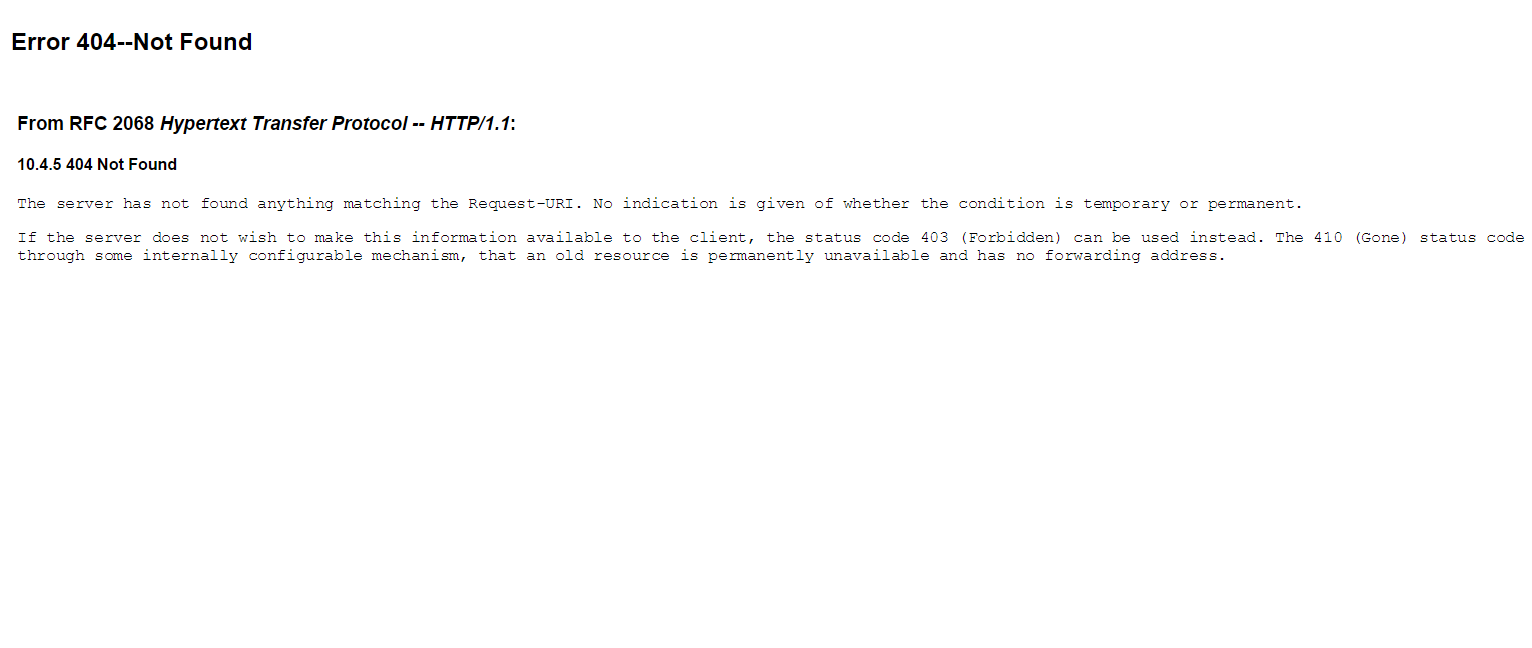
Error 404--Not Found
From RFC 2068 Hypertext Transfer Protocol -- HTTP/1.1:
10.4.5 404 Not Found

The server has not found anything matching the Request-URI. No indication is given of whether the condition is temporary or permanent.

If the server does not wish to make this information available to the client, the status code 403 (Forbidden) can be used instead. The 410 (Gone) status code SHOULD be used if the server knows, through some internally configurable mechanism, that an old resource is permanently unavailable and has no forwarding address.
**********************************************************************************************************************


Solution :  1) You may also like to check the status of application "em" in deployments section of your weblogic admin console. It must be in active state and targetted to admin server.
2) If not u find the EM option in deployements ,

I think you have not created your domain with Enterprise Manager template selected and hence no EM application is present. To extend your existing domain with EM, follow below steps-

1. Stop all servers of your existing domain.
2. Invoke the domain configuration wizard ($MW_Home\wlserver_10.3\common\bin\config.exe)
3. Choose "Extend an existing Weblogic domain" option. Click on next and select your existing domain. Then click on next.
4. Select "Oracle Enterprise Manager - 11.1.1.0[oracle_common]" template. Keep clicking on next and complete the wizard.
5. Start your servers.

Now you should be able to open the EM console.


before:


after :


Tuesday, 18 November 2014

Dehydration in BPEL - Oracle SOA Suite 11g


Dehydration - Offers Reliability, fail-over protection

Over the life cycle of a BPEL instance, the instance with its current state of execution may be saved in a database. When a BPEL instance is saved to a database, the instance is known as being dehydrated. The database where the BPEL instance is saved is called a dehydration store.

Once a BPEL instance is dehydrated, Oracle BPEL Server can off load it from the memory of Oracle BPEL Server. When a certain event occurs, such as the arrival of a message or the expiration of a timer, Oracle BPEL Server locates and loads the persistent BPEL instance from the dehydration store back into the memory of Oracle BPEL Server and resumes the execution of the process instance. Dehydrating BPEL instances offers reliability. If Oracle BPEL Server crashes in the middle of executing a process, the instance can be recovered automatically, programmatically, or manually from the dehydrated states. When Oracle BPEL Server resumes the execution of the process instance, it resumes from the last dehydration point, which is the last state of the instance that Oracle BPEL Server saves to the dehydration store.

                When and how the dehydration occurs differs based on the process types:

■ Transient process — Oracle BPEL Server dehydrates the process instance only once at the end of the process. When a host crashes in the middle of running the process instance, the instances are not visible from Oracle BPEL Control.
■ Durable process/idempotent — Oracle BPEL Server dehydrates the process instance in-flight at all midprocess breakpoint and non-idempotent activities, plus the end of the process. When the server crashes, this process instance appears in Oracle BPEL Control up to the last dehydration point (breakpoint activity) once the server restarts. If the server crashes before the process instance reaches the first midprocess breakpoint activity, the instance is not visible in Oracle BPEL Control after the server restarts.

        There are three cases in which dehydration occurs:

1. When the BPEL instance encounters a mid-process breakpoint activity (not including the initial receive)
Activities like wait, receive, onMessage, onAlarm, call to an async WSDL
That is where an existing BPEL instance must wait for an event, which can be either a timer expiration or message arrival. When the event occurs (the alarm expires or the message arrives), the instance is loaded from the dehydration store and execution is resumed. This type of dehydration occurs only in durable processes, which have mid-process breakpoint activities. A transient process does not have any midprocess breakpoint activities.

2. When the BPEL instance encounters a non-idempotent activity

When Oracle BPEL Server recovers after a crash, it retries the activities in the process instance. However, it should only retry the idempotent activities. Therefore, when Oracle BPEL Server encounters a nonidempotent activity, it dehydrates it. This enables Oracle BPEL Server to memorize that this activity was performed once and is not performed again when Oracle BPEL Server recovers from a crash.
Idempotent activities are those activities where the result is the same irrespective of no. of times you execute the process.
Repeated invocations have the same affect as one invocation.
Ex : Read-Only services

3. When the BPEL instance finishes

At the end of the BPEL process, Oracle BPEL Server saves the process instance to the dehydration store, unless you explicitly configure it not to do so. This happens to both durable and transient processes. For transient processes, the end of the process is the only point where the process instance is saved. This is because a transient process does not have any mid-process breakpoint activities and nonidempotent activities where the in-flight dehydration can occur.
------------------

Dehydration triggered by:

(a)Breakpoint activities: <receive>, <onMessage> (including <pick>), <onAlarm>, <wait>, and <reply>
(b)When using checkPoint()within a <bpelx:exec>activity

------------------

A BPEL invoke activity is by default an idempotent activity, meaning that the BPEL process does not dehydrate instances immediately after invoke activities. Therefore, if idempotent is set to true and Oracle BPEL Server fails right after an invoke activity executes, Oracle BPEL Server performs the invoke again after restarting. This is because no record exists that the invoke activity has executed. This property is applicable to both durable and transient processes.

If idempotent is set to false, the invoke activity is dehydrated immediately after execution and recorded in the dehydration store. If Oracle BPEL Server then fails and is restarted, the invoke activity is not repeated, because Oracle BPEL Process Manager sees that the invoke already executed.


--------------------

BPEL Dehydration Stores
As already explained, when a BPEL process instance is saved in the database, it uses the schema that is configured using Repository Creation Utility(RCU) that you would use during SOA environment setup.
Here are some of the tables that a BPEL engine uses to store its current instance state.

  • cube_instance - stores instance metadata, eg. instance creation date, current state, title, process identifier
  • cube_scope - stores the scope data for an instance
  • work_item - stores activities created by an instance
  •  document - stores large XML variables, etc
  • Invoke_Message: All the outgoing message payload details are stored.
  • Audit_Trail: Used to store information of the xml that is rendered in EM console.
  • DLV_Message: All the incoming payload details are stored.

Sunday, 2 November 2014

Configure Auto Recovery In Weblogic


Oracle SOA Suite 11g has some great features to recover faulted instances automatically. When a BPEL process flow errors out, it is retried with all its invocations. This is undesirable in some cases. For example if re-calling a composite results in duplicated data, data have been changed before the recovery is planned to be executed or you do not want to create too many composite instances in order to save the space in your SOAINFRA-schema. See below the different places where automatic recoveries are configured / disabled.
1) Change RecurringScheduleConfig (see also the screenshot below) 
  • Right-click soa-infra (SOA_cluster_name) 
  • Choose SOA Administration > BPEL Properties 
  • Click "More BPEL Configuration Properties" 
  • Click "Recovery Config" 
  • Change values for RecurringScheduleConfig 
    • maxMessageRaiseSize = 0 
    • startWindowTime = 00:00 
    • stopWindowTime = 00:00 
  • Click Apply 

2) Change StartupScheduleConfig (see also the screenshot below)
  • Right-click soa-infra (SOA_cluster_name)
  • Choose SOA Administration > BPEL Properties
  • Click "More BPEL Configuration Properties"
  • Click "Recovery Config"
  • Change values forStartupScheduleConfig
    • maxMessageRaiseSize = 0
    • startupRecoveryDuration = 0
    • subsequentTriggerDelay = 0
  • Click Apply


The properties startWindowTime and stopWindowTime specify the period during which Auto Recovery is active. By default auto recovery feature will be active from 12AM to 4AM everyday (remember that it’s SOA server time), shown in above screenshot. We can change these settings by simply updating the time values in 24 hr format and do click on Apply.
The property maxMessageRaiseSize specifies the number of messages to be sent in each recovery attempt, in effect resembles the batch size.
The property subsequentTriggerDelay specifies interval between consecutive auto recovery attempts and the value is 300 sec by default.
The property threshHoldTimeInMinutes is used by BPEL engine, to mark particular instance eligible for auto recovery once the recoverable fault occurs which is 10 min by default.
If we observe closely, none of these properties mention about number of recovery attempts to be made which is altogether a separate MBean property. To set, navigate to soa-infra -> SOA Administration -> BPEL Properties -> More BPEL Configuration Properties -> MaxRecoverAttempt. The default value is 2.

RecoveryAttempt
To disable ‘Auto Recovery’, set the maxMessageRaiseSize property value to 0. 


3) Change GlobalTxMaxRetry
The property GlobalTxMaxRetry specifies how many retries are performed if an error is identified as a retriable one. For example, after several web service invocations, if dehydration fails due to a data source error, then this is identified as a retriable error and all activities from the prior dehydration state are retried. If the activities being retried are not idempotent (that is, their state can change with each retry and is not guaranteed to give the same behavior), then multiple retries can be problematic.

You can set GlobalTxMaxRetry to 0 in the Systems MBean Browser.
  • Right-click soa-infra (SOA_cluster_name)
  • Choose SOA Administration > Common Properties
  • Click "More SOA Infra Advanced Configuration Properties"
  • Click "GlobalTxMaxRetry"
  • In the Value field, enter an appropriate value
  • Click Apply

BPEL Recovery Console:
Navigate to soa-infra -> Service Engines -> BPEL -> Recovery to view the recoverable instances. Note that, the console shows all recoverable instances irrespective of enabled/disabled ‘Auto Recovery’. We can manually recover the  faulted instances from this console when Auto recovery is not enabled.


recoveryconsole

Auto Recovery Behavior:
Whenever a recoverable fault (this term is more abstract, I verified this behavior with Remote, Binding and User Defined Faults) occurs during the BPEL processing, it will be visible in Recovery console. If Auto Recovery is enabled, after threshHoldTimeInMinutes BPEL runtime will try to auto recover the instance. If it’s not successful, again number of recovery attempts will be made as given for MaxRecoverAttempt with an interval as given for subsequentTriggerDelay. If instance fails even after these maximum recover attempts, the instance will be marked as exhausted (can be queried on recovery console using message state as exhausted). We can use ‘Reset’ button to make these instances eligible for Auto Recovery again.
Note that, we observe this behavior only when the fault is thrown back to BPEL runtime or fault is not caught within BPEL process.


Configuring Weblogic App Server in Eclipse


We are going to explore how we can add Weblogic Application Server in Eclispe IDE. We are using:


Ok. Let's Start. 
  • Start up your Eclipse IDE and switch to J2EE Perspective:


  • By the bottom of the screen you will find the "Servers" tab. Click it.


  • Right click in the blank space within the tab and choose new->server.


  • In the dialog that pops up, expand the Oracle server type and choose Oracle Weblogic Server 11gR1 PatchSet 4. Hit Next. 
    (Note:- We choose 11gR1 PatchSet 4 as the server adapter because we have this particular server installed. If your server is different, you need to choose the different version of the adapter here.)

  • Chances are that when you hit next, the wizard looks for and finds the actual server in your system and populates it it the appropriate boxes. However if it does not, choose the browse button next the the field "Weblogic home" and choose your server.
  • For java home, choose either jrockit, which comes with Weblogic and is tuned for production environments or you may choose any other JVM.


  • Click next and finish in the subsequent screens and you are done with the configuration. To test it, you can right click on the newly added server and hit Start.